 StoreSathi
 How to keep your shop's billing data safe
How to keep shop billing data safe: automatic backups on your PC, a copy on a pen drive or Google Drive, a backup password, and how to restore on a new PC.
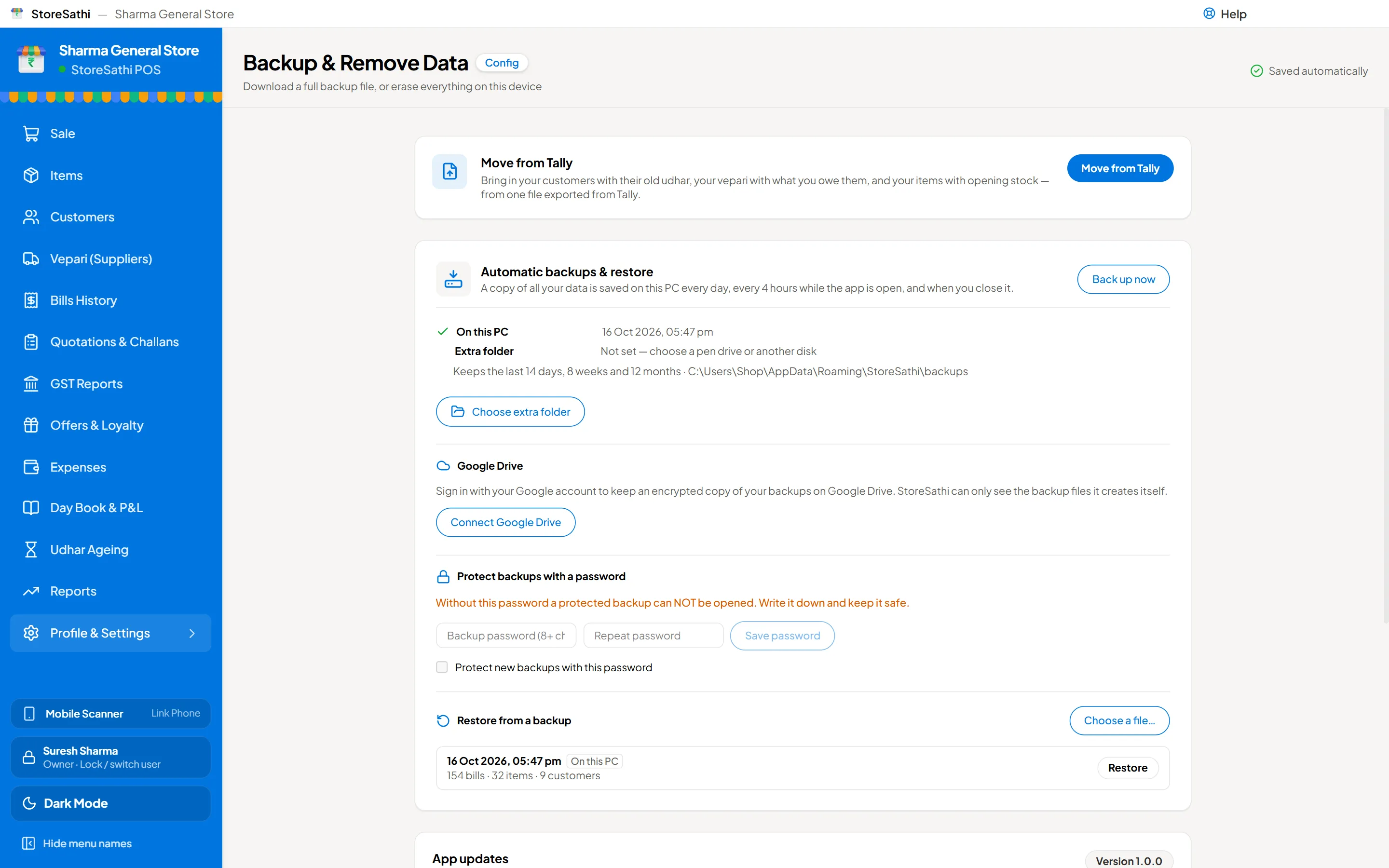
Your shop’s billing data is safe when there are copies of it in more than one place, made without you having to remember. StoreSathi backs up by itself every day and every four hours, keeps older copies, and can also save to a pen drive and to your own Google Drive, encrypted. Add a backup password, keep one copy away from the shop, and a broken PC becomes an inconvenience, not a disaster.
Why does a shop need backups at all?
Your billing data is years of work: every bill, every customer’s udhar, every vepari payment, your stock and your GST records. It lives on one PC at the counter, and PCs fail. A hard disk dies, a power surge burns the board, a phone falls, a laptop is stolen, or water from a leak reaches the machine.
Without a backup, all of that has to be built again from paper, if the paper exists. With a backup, you install the app on another machine, restore, and carry on.
StoreSathi keeps your data on your own PC and phone, not on our servers. That is good for privacy and it means billing works without internet, as explained in why offline billing matters. It also means the copies are your responsibility, which is why backups run on their own.
When does StoreSathi back up?
Automatically, at three moments:
- the first time you open StoreSathi each day;
- every four hours while it is open;
- once more when you close it.
You can also press Back up now whenever you like, for example before a big stock change. A backup never makes billing wait: you keep making bills while it runs.
Where are the backups kept?
| Place | What is kept | Good for |
|---|---|---|
| On this PC | The last 14 days, 8 weeks and 12 months | Going back to yesterday or last month |
| Extra folder (pen drive or another disk) | The same 14 days, 8 weeks and 12 months | A copy that survives if the PC’s disk dies |
| Your own Google Drive | 30 daily and 12 monthly copies, within a size limit | A copy that survives fire, theft or flood |
The copies on the PC alone are not enough. If the PC itself is lost, they go with it. That is why the other two places matter.
Using a pen drive or another disk
In Profile and Settings, Backup, choose an extra folder. A pen drive works well. StoreSathi writes every backup there too, as long as the drive is plugged in. Keep the pen drive somewhere other than the PC, at least overnight.
Using Google Drive
Choose Connect Google Drive and sign in with your own Google account. From then on every backup is also copied to your Drive:
- the Drive copy is always encrypted;
- StoreSathi can only see the backup files it made itself, not the rest of your Drive;
- if the internet is down, the copy waits on the PC and goes up when you are back online.
A big shop’s backups are larger, so StoreSathi keeps fewer daily copies on Drive (never fewer than seven) to stay inside the space limit, and always keeps the monthly ones.
Should I put a password on my backups?
Yes, if anyone else can reach your pen drive or PC. With a backup password set, the backup file is encrypted and cannot be opened without the password, on any computer.
There is one rule to take seriously: without the password, a protected backup cannot be opened, by anyone, including us. Write the password down and keep the paper safe, away from the PC. A password you have forgotten protects your data from you as well.
How do I restore a backup?
In the backup screen, choose Restore from a backup and pick the file. Before anything changes, StoreSathi:
- checks the whole file, and asks for the password if it has one;
- shows you what is inside, such as when it was made and how many bills, items and customers it holds;
- makes a safety backup of the data you have now, so the restore itself can be undone;
- only then puts the backup in place.
If the file fails its check, nothing is changed.
What if my PC breaks?
This is where an extra folder or Google Drive pays off.
- Install StoreSathi on the new PC from the download page.
- Open Restore from a backup and choose your latest backup, from the pen drive or from the copy you saved out of Google Drive.
- Check what the file holds, confirm, and carry on billing.
If you use a phone linked to the PC, the phone keeps working with slips during the time the PC is down, and they become proper bills once the PC is back. You can read how that works in using your phone as a second billing counter.
What else keeps the data safe?
Backups protect against losing data. A few other things protect against mistakes and misuse:
- Users with roles and PIN. Backup, restore and wiping data are permissions you give only to the people you trust, and a linked phone can never do them. Read more in staff roles and PIN.
- Updates after a backup. StoreSathi updates itself, never in the middle of a bill, and always makes a backup first.
- A backup reminder. If backups have not been made for a while, the app reminds you.
You can see the full list on the Backup and safety features.
A simple routine for any shop
- Leave the automatic backups on. They need nothing from you.
- Connect Google Drive once, so a copy always leaves the shop.
- Keep a pen drive as the extra folder, and take it home now and then.
- Set a backup password, and keep it written down.
- Once in a while, open the backup screen and check the date of the last backup.
In short
- StoreSathi backs up on its own: daily, every four hours, and when you close.
- Keep copies in three places: the PC, a pen drive, and your own Google Drive, which is always encrypted.
- A backup password protects the files, but cannot be recovered if forgotten.
- Restore checks the file first, shows what is in it, and saves your current data before replacing it.
Try the backups yourself in the 30-day free trial; download StoreSathi and connect your Google Drive on day one.
Questions
How often does StoreSathi back up my data? Automatically: the first time you open it each day, every four hours while it is open, and once more when you close it. You can also press Back up now at any time.
Are my bills sent to StoreSathi's server? No. Your bills, items and customers stay on your PC and phone. Backups go to your PC, to an extra folder you choose such as a pen drive, and to your own Google Drive if you connect it.
Is the Google Drive copy safe? Yes. The copy on Google Drive is always encrypted, and StoreSathi can only see the backup files it made itself, not the rest of your Drive.
What happens if I forget my backup password? A backup protected with a password cannot be opened without it, by anyone. Write the password down and keep it somewhere safe, away from the PC.
How do I move my data to a new PC? Install StoreSathi on the new PC, choose Restore from a backup, and pick your latest backup file. StoreSathi shows what is in the file before anything is replaced.