 StoreSathi
 Barcode labels for your shop: sizes, printing and loose items
How to print barcode labels for a kirana or retail shop: which label size to pick, A4 sheets or label rolls, and how to handle loose items sold by weight.
To print barcode labels for your shop, give each item a barcode in StoreSathi, choose a label size, and print on A4 sticker sheets or a thermal label roll. Items that already carry a company barcode need no new label: you save that code once and scan it at the counter. Loose goods get one label on the bin, and the price is typed when you bill.
Barcodes are what make a busy counter quick. A USB barcode gun reads the code in a moment, the item lands on the bill, and nobody has to remember the price of 600 items or search a list while customers wait. Here is how to set it up without wasting labels.
Which items need a barcode label?
Most packaged goods in a kirana or general store already have a barcode printed by the company. For those, you do not print anything. Open the item in StoreSathi, scan the packet once into the barcode field, and save. From then on, scanning that packet at the counter adds it to the bill.
You need your own labels for:
- Goods you pack in the shop, like 1 kg packets of sugar, dal or rice from a bori.
- Items without a barcode, like local snacks, stationery, steel utensils or hardware parts.
- Shelves and bins of loose goods, so the counter can scan the bin label instead of searching.
- Gift packs or combos you make yourself.
When you add a new item without a barcode, StoreSathi can give it one from its own number series (001, 002, 003 and so on). A deleted item’s number is never reused, so an old label left on a shelf can never ring up the wrong item.
Which label size should I choose?
StoreSathi prints on four single label roll sizes, a two-across roll and A4 sheets. This table is a simple way to pick:
| Label size | Good for |
|---|---|
| 50 × 25 mm | Most packets, bottles and boxes. The usual size for thermal label printers. |
| 38 × 25 mm | Small items: cosmetics, medicines, stationery. |
| 50 × 38 mm | When you want the shop name and MRP to stand out on the label. |
| 100 × 50 mm | Cartons, boxes and courier parcels. |
| 2 × 50 × 25 mm | Two labels side by side on a two-across roll, for faster printing. |
| A4 sheet | Any normal printer, 2 to 6 labels across (14 to 84 on a sheet). |
Each label carries the item name, the barcode with its number, and the selling price. If the item has no fixed price, the price place stays empty, which is right for loose goods.
If you are not sure, start with 50 × 25 mm. It is the size most label printers sold in India are set up for, and it fits on almost anything.
A4 sticker sheets or a label roll?
A4 sticker sheets need no new machine. Any inkjet or laser printer will do. Choose how many labels fit across the sheet (2, 3, 4, 5 or 6) to match the sticker paper you bought. Four across gives 40 labels on a sheet, which suits most shops.
The one thing that wastes money with A4 sheets is the half-used sheet. StoreSathi handles that: tell it how many labels are already gone from the top of the sheet, and it starts printing from the next empty one.
A thermal label printer is better when you label stock every week. It prints one label at a time from a roll, there is no ink to buy, and you print exactly as many as you need. If you are also choosing a printer for bills, our guide to 58 mm and 80 mm thermal printers explains the difference between a receipt printer and a label printer.
How do I print labels in StoreSathi?
- Make sure each item has a barcode, either the company barcode you scanned or one StoreSathi gave it.
- Choose the items to label, open the barcode label preview, and pick the label size.
- Set the number of copies for each item, for example 24 labels for the 24 sugar packets you just packed.
- For A4, set the labels across and any already-used labels on the sheet.
- Print, or save as PDF to print later.
Print a single test label first when you use a new roll or sheet. Label stock from different sellers is cut slightly differently, and one test saves a whole sheet.
How do I bill loose items with barcodes?
Loose goods, like dal, sugar, rice, dry fruits or nails sold by weight, do not have one fixed price per piece. StoreSathi treats them as loose items. You can put one label on the bin or the shelf edge.
At the counter, scanning that label does not add a fixed amount. StoreSathi asks for the quantity and the price, and shows the price you sold that item at last time, so the cashier does not have to remember it. The line then goes on the bill with the right GST rate and HSN code from the item.
This keeps two things right at once: the bill is quick, and your stock goes down by the real weight sold.
What makes barcode billing fast at the counter?
- Exact match first. When a code is scanned, StoreSathi looks for an item with exactly that barcode before anything else, so similar codes never mix up.
- The keyboard does the rest. F8 opens a new sale, the gun adds lines, and Ctrl+S saves. You can read more about the keys in our guide to moving from Tally.
- Low-stock alerts. Set a minimum stock on each item, and the sale screen’s Low Stock filter shows what needs reordering.
On the phone app, the camera can scan barcodes for bills made on the phone. If you bill from a phone alongside your PC, see using your phone as a second billing counter.
Where do labels help besides the counter?
Labels pay off when stock comes in, too. When the vepari’s goods arrive, label anything without a barcode before it goes on the shelf. Purchase bills can also be read from the vepari’s PDF or Excel file, which saves typing; see reading purchase bills from PDF.
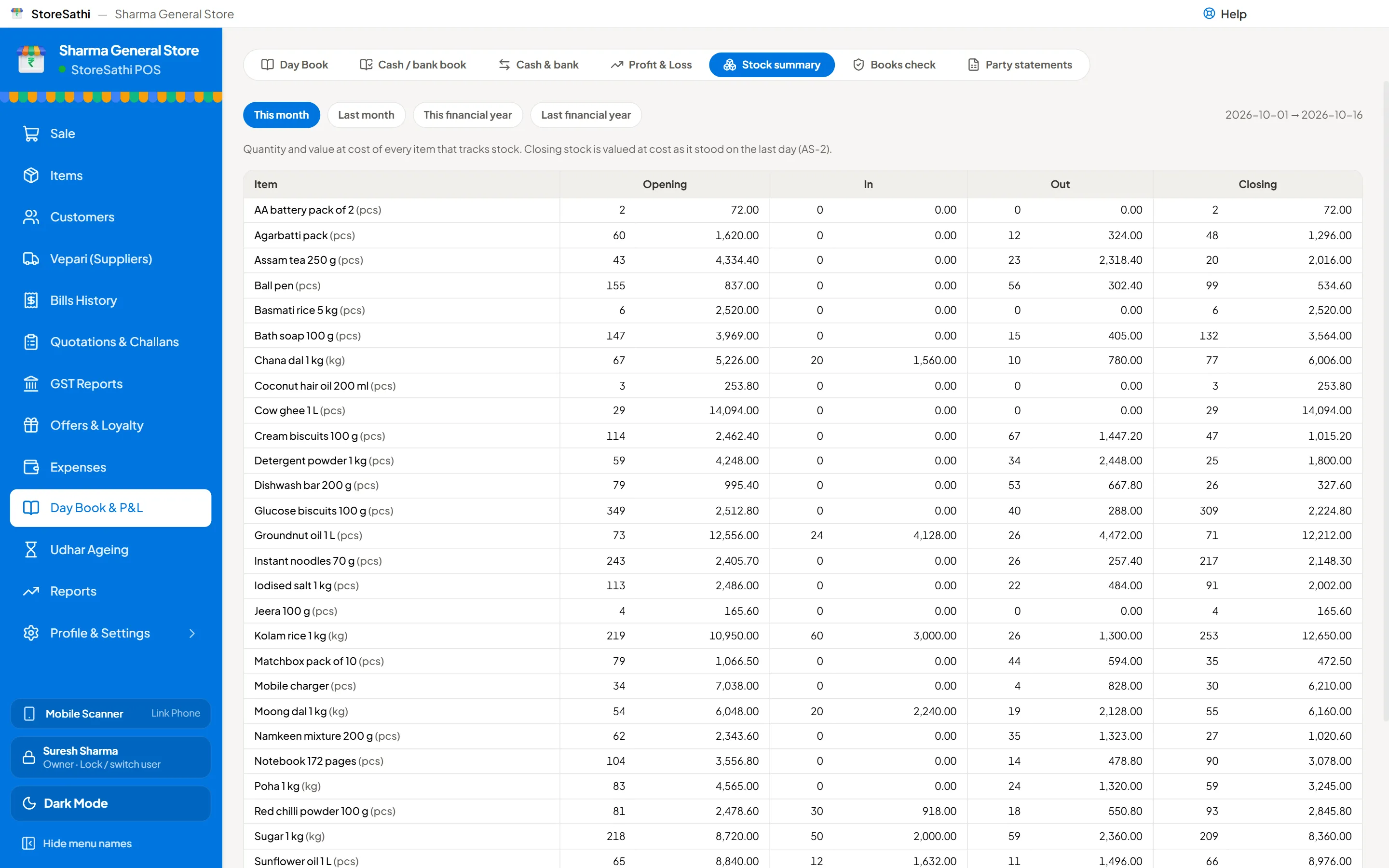
Then the stock summary tells you, item by item, what came in, what went out and what is left, valued at cost. Wrong stock counts usually come from items sold under the wrong name or not billed at all. A label on every item closes that gap.
In short
- Scan the company barcode into each item once; print your own labels only for items without one.
- Start with 50 × 25 mm labels, or A4 sticker sheets on the printer you already have.
- Use the already-used labels setting so half-used A4 sheets are not wasted.
- Mark loose goods as loose items, label the bin, and type the weight and price at the counter.
- Set minimum stock so the Low Stock filter tells you what to reorder.
All the label sizes and barcode billing are in every StoreSathi plan; you can see the stock features or try it free for 30 days.
Questions
Which barcode label size is best for a small shop? 50 × 25 mm is the common choice for packets and boxes and fits most thermal label printers. Pick 38 × 25 mm for small items like cosmetics, 50 × 38 mm when you want more room for the MRP, and 100 × 50 mm for boxes and cartons.
Do I need a special printer for barcode labels? Not to start. StoreSathi prints barcode labels on ordinary A4 sticker sheets from any normal printer. A thermal label printer becomes worth it when you label a lot of stock every week.
My items already have a barcode from the company. Do I need new labels? No. Save the printed barcode in the item once and scan it at the counter. Make your own labels only for items without one, like loose goods packed in the shop.
How do I bill loose items like dal or sugar with a barcode? Set the item to loose pricing and put one label on its bin or shelf. When you scan it, StoreSathi asks for the quantity and price, and shows the last price you sold it at.
Can I use a half-used A4 label sheet? Yes. In the label preview, tell StoreSathi how many labels on the sheet are already used, and printing starts from the next free one.