 StoreSathi
 Stop typing vepari bills: read them from PDF
Enter vepari purchase bills from PDF or Excel instead of typing each line: how StoreSathi reads the bill, matches your items and checks every amount before you save.
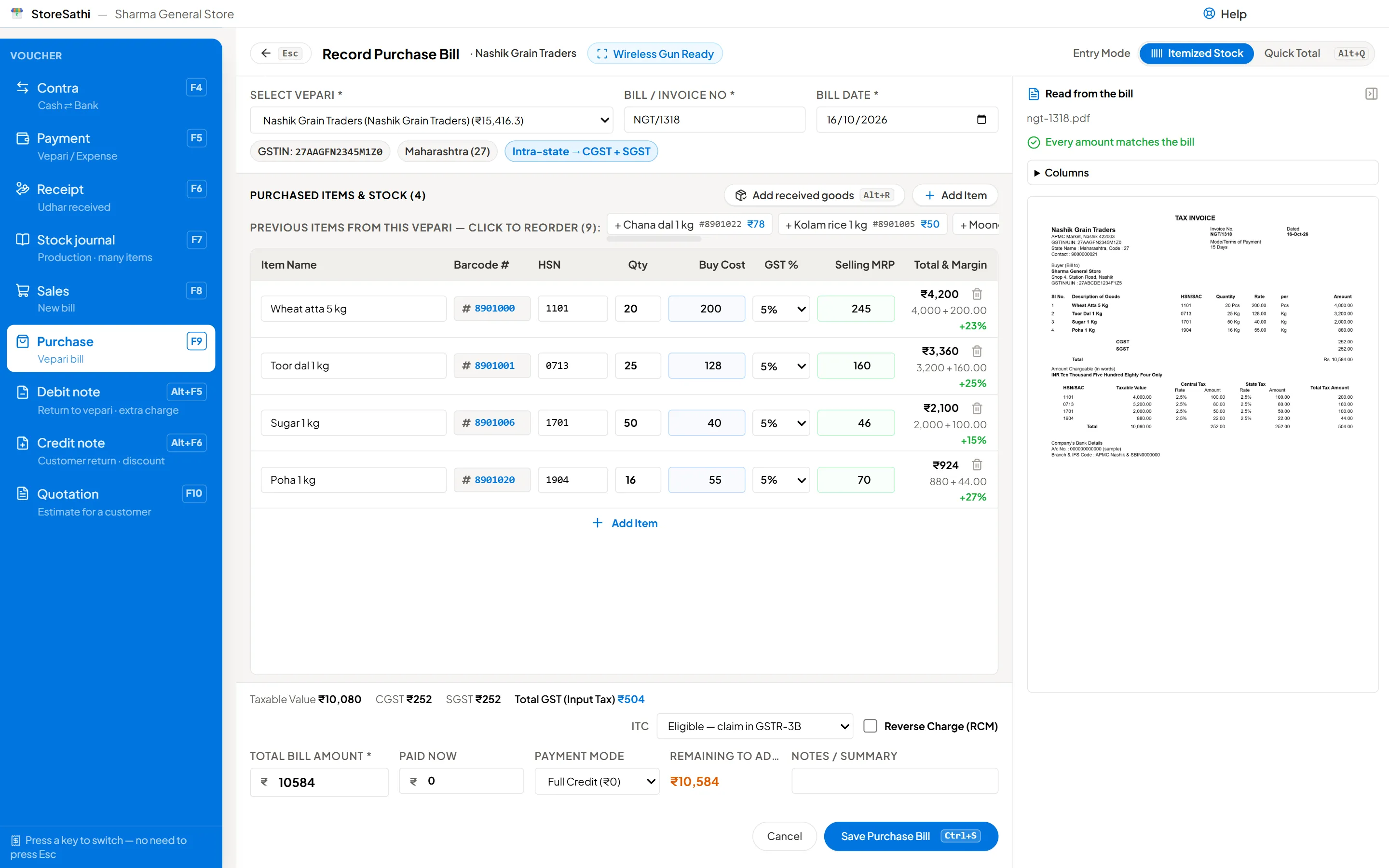
You do not have to type your vepari’s bills line by line. Most vepari send a PDF made by their billing software, and that PDF already carries every item, quantity, rate and tax amount as text. StoreSathi reads that text, fills in the purchase bill, matches each line to your items, and checks every amount before you save. You check, correct if needed, and press Save.
Why is typing purchase bills a problem?
A busy kirana or general store gets several purchase bills a week, some with dozens of lines. Typing them takes time, usually late in the evening, and every typed line is a chance for a mistake: a wrong quantity changes your stock, a wrong rate changes your cost and your profit, and a wrong total changes what you owe the vepari.
Those mistakes show up later, when the stock count does not match, the vepari’s statement disagrees with yours, or your purchase register does not agree with your returns. Reading the bill from the file removes most of the typing, and the checks catch what is left.
What kind of bills can StoreSathi read?
| Bill you receive | Can it be read? |
|---|---|
| PDF from billing software (Tally, Vyapar, Busy, Marg, myBillBook, Zoho and similar) | Yes |
| Bills over several pages | Yes |
| Excel or CSV sheet from the vepari | Yes |
| Photo of a bill, or a scanned PDF | Not yet: you type it as usual |
The key point is that a PDF from billing software contains real text. StoreSathi reads that text exactly, with the position of each word on the page, so there is no guessing of characters. A scanned PDF is only a picture of the page. StoreSathi notices this and tells you, so you never get a half-read bill without knowing.
Everything is read inside StoreSathi, on your own computer. The bill is not sent to any company or service, and no internet is needed.
How do I import a vepari’s bill?
You can start from three places:
- the vepari’s page, with Import bill;
- the Vepari list, with Import bill;
- the F9 purchase chooser, with Bill from a file (PDF / Excel).
Choose the file with the file picker. You can choose several files at once, and they open one after another.
How does StoreSathi find the vepari?
It looks for the vepari’s GSTIN on the bill first, as that is the most reliable, then the phone number, then the name. If more than one vepari could match, it asks you which one.
If the vepari is new to you, the vepari form opens first, already filled in from the bill: name, GSTIN, state, PAN, address, phone and bank details where they are printed. You check it, save it, and then the purchase bill opens.
What does the review screen show?
The normal purchase bill, filled in, with the bill’s page beside it:
- bill number, date and place of supply;
- every line: item, HSN, quantity, unit, rate, discount, GST % and amount;
- the totals and the tax.
Each line is matched to one of your items, or marked as a new item. Anything StoreSathi is unsure of is highlighted, and lines to fix are marked on the page picture, so you can compare with the original at a glance.
Charge lines such as freight or packing are handled too: they are not stock items, and their cost is spread over the goods on the bill, so your item costs stay true. You can read more about cost and stock on the Stock and buying features.
What does StoreSathi check before saving?
This is where reading from the file is safer than typing. Before the bill can be saved, StoreSathi checks:
- every line: quantity times rate, less discount, plus tax, equals the line amount;
- the lines add up to the bill total, and the tax summary agrees with the lines;
- CGST and SGST, or IGST, agree with the vepari’s state and yours;
- the bill is made out to your shop’s GSTIN;
- the vepari’s GSTIN is in the right format with a valid check digit;
- the same bill from the same vepari, or the same file, has not been entered before;
- the date is not in the future, or in a closed year or a GST month already marked as filed;
- each rate is not far from what you paid last time for that item.
When the bill has a GST e-invoice QR code, StoreSathi reads it as well, and the bill must agree with it: the vepari’s GSTIN, the bill number and the total.
Errors must be fixed before Save. Warnings, like a rate much higher than last time, can be looked at and accepted one by one. What the input tax credit and other GST rules mean for your shop is a question for your CA; StoreSathi records what the bill says and checks that the numbers agree.
Does it get better with each bill?
Yes. When you match a vepari’s item name to one of your items, StoreSathi remembers it for that vepari, so their next bill matches by itself. If a vepari’s bill layout is read into the wrong columns, you can set the columns once in the review’s Columns section, and it is remembered for that vepari too.
Both are listed on the vepari’s Info tab, where you can remove a remembered item or forget the columns if something changes.
Is the original bill file kept?
No. To keep your backups small, the file itself is not stored. StoreSathi keeps only a fingerprint of it, which is how it knows if the same file is imported again. Keep the vepari’s PDF in your email or a folder as you do today.
Where does this fit in a shop’s routine?
Reading purchase bills works well with goods received now and billed later, with stock updated as soon as the bill is saved, and with your vepari ledger showing what is left on each bill. If you are moving from Tally, you can bring your vepari in first, as described in moving from Tally to StoreSathi, and their bills will then match by GSTIN. For items that arrive without barcodes, see barcode labels for your shop.
In short
- StoreSathi reads text PDFs from billing software, and Excel or CSV sheets, on your own computer.
- It finds the vepari by GSTIN, fills in every line, and matches your items.
- Every amount, the GSTINs and duplicates are checked before you can save.
- Scanned PDFs and photos are not read yet; type those as usual.
Try it on your next vepari bill during the 30-day free trial; download StoreSathi and open F9.
Questions
Which purchase bills can StoreSathi read? PDF bills made by billing software, such as Tally, Vyapar, Busy, Marg, myBillBook and Zoho, and Excel or CSV sheets from your vepari. The PDF must contain text, as software-made PDFs do.
Can it read a photo or a scanned bill? Not yet. A scanned page is only a picture with no text, so StoreSathi tells you it cannot read it and you type that bill as usual.
Is my vepari's bill sent anywhere to be read? No. The bill is read inside StoreSathi on your own computer, without internet and without any outside service. The file itself is not kept, only a fingerprint so the same file cannot be imported twice.
What if a line is read wrongly? You see the bill's page beside the purchase, with the lines to fix marked. Correct the line, and if a vepari's layout reads wrongly every time, set the columns once for that vepari.
Can I import several bills at once? Yes. Choose several files in the file picker and StoreSathi opens them one after another for you to check.