 StoreSathi
 How to move your shop from Tally to StoreSathi
Move from Tally to StoreSathi with one exported file: customers with udhar, vepari balances and items with opening stock, checked before you save.
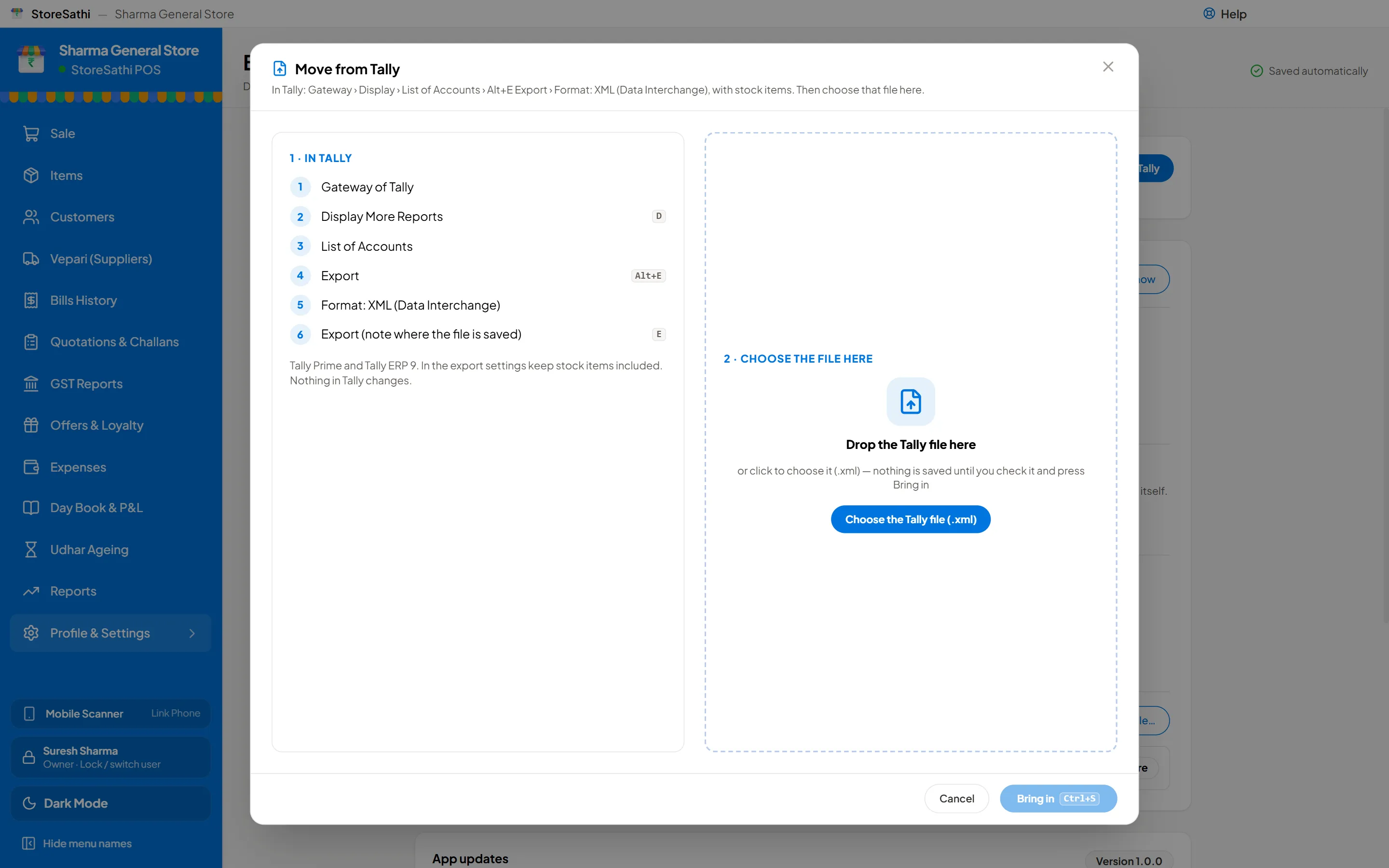
Moving from Tally to StoreSathi takes one exported file and a few minutes of checking. You export your list of accounts from Tally as XML, open Move from Tally in StoreSathi, check the totals against Tally and save. Your customers come across with their udhar, your vepari with what you owe them, and your items with their opening stock.
This guide walks through each step, what comes across, what stays behind, and how to keep your CA happy.
Why do shops move from Tally to a simpler billing app?
Tally is powerful accounting software, and many CAs know it well. But at a busy counter, a shop owner usually needs something different: a bill in seconds, a printed slip, udhar written down at once, and stock that moves with every sale.
Many shop owners spend months learning a full accounting package before they feel at home. StoreSathi was built to keep the parts Tally users like, such as the function keys, and to do the accounting in the background while you bill. You keep the habits, and you lose the long learning curve.
Moving does not mean your CA has to change anything. More on that below.
What do I need before I start?
Keep these ready:
- Tally Prime or Tally ERP 9 with your company open.
- StoreSathi installed on your Windows PC, with the shop set up. If you have not installed it yet, see Download.
- The date you are switching on. Most shops choose the start of a financial year, 31 March, but any date works.
- Your Tally totals for that date: what customers owe you, what you owe vepari, and your stock value. You will compare these with StoreSathi before saving.
How do I export the file from Tally?
In Tally, go to Gateway › Display › List of Accounts. Press Alt+E to export, and choose the format XML (Data Interchange). Turn on showing stock items, so the file carries your inventory masters too.
That one file holds every ledger, group and stock item in your company. You do not need separate exports for customers and items.
A few things StoreSathi handles for you when it reads the file:
- Tally often saves the file as UTF-16. That is fine.
- Quantities written with units, such as “10 Bag”, are understood.
- Amounts marked Dr or Cr are read the right way round.
- Customers and vepari kept in sub-groups under Sundry Debtors and Sundry Creditors are still found.
Ledgers StoreSathi does not need, such as bank, cash, sales and tax ledgers, are skipped and counted, so nothing is silently lost.
How do I bring the file into StoreSathi?
Open Settings › Data › Move from Tally. The same option also appears on the last step of the first-time setup.
- Choose the file you exported. StoreSathi shows the company name and how many customers, vepari and items it found.
- Pick the date your balances are as on. It starts at 31 March.
- Check the totals. StoreSathi shows what is in the file beside what is coming in: debtors, creditors and stock value. Match these with your Tally figures for the same date.
- Review the three tabs, Customers, Vepari and Items. Each line is marked new, already here, or mobile needed.
- Fill in missing mobile numbers right there in the list, set a selling price per item if you want one, and untick anything you do not want.
- Save. Everything goes in at once.
If the same file is chosen again later, StoreSathi recognises it and tells you, so nothing is entered twice.
What comes across from Tally, and what stays behind?
| Comes across | Stays in Tally |
|---|---|
| Customers, with opening udhar or advance | Old sales and purchase bills |
| Vepari, with what you owe them | Old GST returns |
| Items, with unit, HSN, GST rate and opening stock | Bank, cash and tax ledgers |
| GSTIN, address and mobile, where Tally has them | Old vouchers |
A customer’s advance comes in as store credit, which is used on their next bills. Opening udhar shows as the first line of their khata, and it counts in the ageing list from day one. If you want to know how to keep that udhar under control after the move, read how to manage udhar khata.
What if I made a mistake in the import?
You can undo the last import from Settings › Data. Undo removes exactly what that import created, as long as none of it has been used yet: no bill, payment, return, note, challan, purchase, stock change or store credit against it. If something has been used, StoreSathi refuses and lists the reasons, so your books never end up half-changed.
Will the Tally keys still work in StoreSathi?
Yes, the main voucher keys are the same:
- F4 Contra, F5 Payment, F6 Receipt, F7 Journal
- F8 Sales, F9 Purchase
- Alt+G Go to, F12 Configure, Esc Back
A few keys do something else, so nothing clashes. For example, in StoreSathi Alt+F6 and Alt+F5 are credit and debit notes, F10 opens a quotation, and Ctrl+F8 is a sales return. Press F1 any time for the full list. The switch from Tally page has the complete table.
Can my CA keep using Tally?
Yes. StoreSathi exports ledgers and vouchers as a Tally XML file for Tally Prime or ERP 9. Your CA imports it and carries on as before.
Two things the CA enters once in Tally: your starting cash and bank balances, and any goods received that are not billed yet. StoreSathi lists those open goods-received entries for you, so nothing is missed. For GST filing, StoreSathi prepares the reports, and your CA checks them before filing.
What should I do on the first day after switching?
- Make a few test bills and print one, to check your printer and paper size.
- Open a customer with old udhar and check their khata shows the right opening balance.
- Check the stock summary for two or three items you know well.
- Check that automatic backups are running, and add a Google Drive copy; read how to keep your billing data safe for the rest.
You can see all of this on the free 30-day trial before paying anything, so try the move with your real Tally file first.
In short
- Export List of Accounts from Tally as XML (Data Interchange), with stock items.
- In StoreSathi, open Settings › Data › Move from Tally, pick the date and check the totals.
- Customers, vepari and items come across with their balances; old bills stay in Tally.
- Undo the import while nothing from it is used, and keep your CA on Tally with the export.
Questions
Do I need to type my customers and items again when I leave Tally? No. Export one XML file from Tally and StoreSathi reads your customers, vepari and stock items from it. You check the totals and save once.
Does StoreSathi bring my old Tally bills across? No. Old bills and old GST returns stay in Tally, as with any change of software. StoreSathi starts from your opening balances on the day you switch.
Can my CA keep working in Tally? Yes. StoreSathi exports ledgers and vouchers as a Tally XML file for Tally Prime or ERP 9, which your CA can import.
What if I import the wrong file? You can undo the last import from Settings › Data, as long as nothing from it has been used yet in a bill, payment or stock change.
Will the Tally keys still work? Most of them. F4 Contra, F5 Payment, F6 Receipt, F7 Journal, F8 Sales and F9 Purchase do the same jobs in StoreSathi.